How Crypto Virtual Cards Can Bind to Google Play Store

You can use Crypto Virtual Cards like UUPAY to make payments on Google Play Store. Google Wallet and Google Pay support these cards, giving you a simple way to pay. Make sure your card works with your device. Card compatibility matters for smooth transactions.
Key Takeaways
Ensure your crypto virtual card is compatible with Google Wallet before linking it to the Google Play Store. This step prevents payment issues.
Fund your card with stablecoins like USDT to ensure you have enough balance for purchases. Always check your card balance before making transactions.
Use strong passwords and enable multi-factor authentication to protect your account. Regularly update your app and device for enhanced security.
Requirements for Crypto Virtual Cards
Card Compatibility and Supported Devices
Before you bind your crypto virtual card to Google Play Store, you need to meet several prerequisites. Make sure you have:
The EMCD app installed on your Android device
An issued and active EMCD Payment Card
A supported Android version with Google Wallet enabled
Internet access and device security settings turned on
You should check that your device supports Google Wallet. Most modern Android phones do, but older models may not. Your card must also be active and compatible with Google Pay. These steps help you avoid issues during the setup process.
Funding with Cryptocurrency (e.g., USDT)
You must fund your crypto virtual card before making purchases. Many users choose stablecoins like USDT for this purpose. Funding your card ensures you have enough balance for Google Play Store transactions. Some platforms allow you to top up instantly, making the process quick and easy.
Tip: Always double-check your card balance before linking it to Google Play Store to prevent payment failures.
Security and Account Verification
Security is essential when using crypto virtual cards. You should use strong passwords and enable multi-factor authentication (MFA) to protect your account. MFA can lower the risk of account compromise by 62%. Regularly update your app and device to patch security vulnerabilities.
Google Wallet employs a verification process for new cards, requiring you to confirm your identity through various methods. This step helps prevent unauthorized access to your account.
You should also stay alert for phishing scams and avoid connecting to unsecured networks. Educating yourself about these risks makes your transactions safer.
Bind Crypto Virtual Cards to Google Play Store
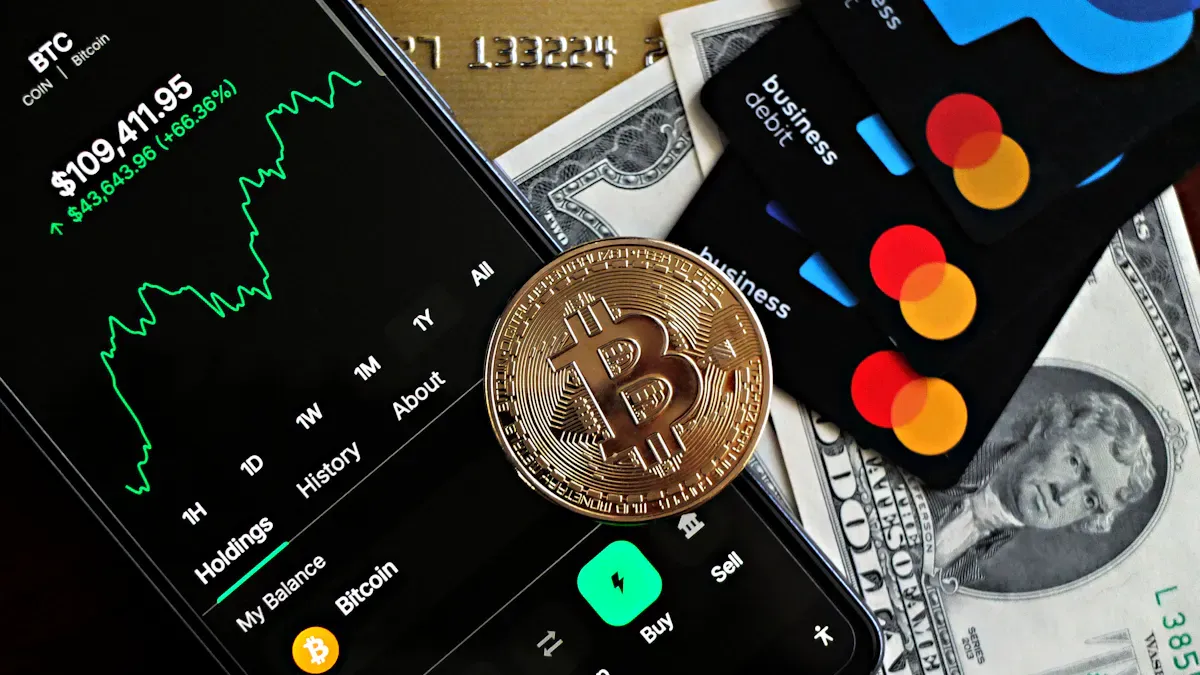
Add Card to Google Wallet
You need to add your Crypto Virtual Cards to Google Wallet before making purchases on Google Play Store. Start by obtaining your UUPAY virtual card. Download the app and create your account. Once you have your card, follow these steps:
Open the Google Pay app on your Android device.
Tap the option to add a new card.
Enter your virtual card details, including the card number, expiration date, and CVV.
Wait for a confirmation or security verification code from your card provider.
Once verified, your card appears in Google Wallet, ready for use.
Note: Make sure your card is funded and active. This step prevents payment failures and ensures a smooth setup.
Link Card for Google Play Purchases
After adding your card to Google Wallet, you can link it to Google Play Store for purchases. Open Google Play Store and navigate to the payment methods section. Select your Crypto Virtual Cards from the list. Set it as your default payment method if you plan to use it regularly.
You can now buy apps, games, and subscriptions using your virtual card. The integration with Google Wallet and Google Pay streamlines the payment process. You do not need to enter card details every time you make a purchase.
Tip: Linking your card to Google Play Store saves time and increases convenience. You can manage your spending and track transactions directly from your wallet app.
Complete Verification and Start Using
Google Play Store may require additional verification for new payment methods. You might receive a prompt to confirm your identity or verify your card. Follow the instructions provided by Google Play Store and your card provider. Verification usually involves entering a code sent to your email or phone.
Once you complete verification, you can start using your Crypto Virtual Cards for all Google Play Store transactions. Payments process quickly and securely. You benefit from the speed and convenience of digital payments, and your card information stays protected.
Step | Action | Result |
|---|---|---|
Add to Google Wallet | Enter card details and verify | Card ready for payments |
Link to Play Store | Select card as payment method | Purchases enabled |
Complete Verification | Confirm identity or card ownership | Secure transactions |
Using Crypto Virtual Cards for Google Play Store purchases gives you flexibility and security. You can fund your card with cryptocurrency and enjoy fast, seamless payments.
Troubleshooting
Card Not Accepted
You might see an error message if Google Play Store does not accept your crypto virtual card. This problem often happens when the card is not activated, has insufficient funds, or is not compatible with Google Pay. Check your card status in the UUPAY app. Make sure you have enough balance for your purchase. If your card is new, wait a few minutes and try again. Some cards require extra activation steps. You can also check if your device and Google Wallet app are up to date.
Tip: Try removing the card from Google Wallet and adding it again. This step can solve many acceptance issues.
Verification Issues
Sometimes, Google Play Store or Google Wallet asks you to verify your card or identity. If you do not receive a verification code, check your email and SMS inbox. Make sure your contact information in UUPAY is correct. If you enter the wrong code, request a new one and try again. Avoid multiple failed attempts, as this can lock your card temporarily.
Issue | Solution |
|---|---|
No verification code | Check email/SMS, update info |
Wrong code entered | Request new code, try again |
Card locked | Wait or contact support |
Contact UUPAY Support
If you still cannot bind your card or complete verification, you should contact UUPAY support. The support team can help with technical issues, card activation, or account problems. You can reach them through the UUPAY app or website. Provide details about your device, error messages, and steps you have tried. This information helps support resolve your issue faster.
Note: UUPAY support responds quickly to most requests. Do not share your password or sensitive information with anyone except official support channels.
You can enjoy fast and secure payments on Google Play Store by using Crypto Virtual Cards. The setup process is simple if you follow each step. If you face any issues, reach out to UUPAY support for help. This method gives you more control over your digital spending.
FAQ
Can you use a crypto virtual card for all Google Play purchases?
You can use your crypto virtual card for most Google Play purchases. Some subscriptions or regions may not support this payment method.
Tip: Check Google Play’s payment policies for your country.
What should you do if your card gets declined?
You should check your card balance and activation status. Update your Google Wallet app. If the issue continues, contact UUPAY support for help.
Action | Result |
|---|---|
Check balance | Prevent payment errors |
Is it safe to link a crypto virtual card to Google Play Store?
You protect your account by enabling multi-factor authentication and using strong passwords. Google Wallet adds extra security.
:lock: Always keep your device updated for maximum safety.
See Also
Top Strategies For Using Crypto Cards On Google Play
Simple Methods To Acquire A Virtual Crypto Debit Card
Steps To Secure Your Own Crypto Debit Card
